Displaying Spectra
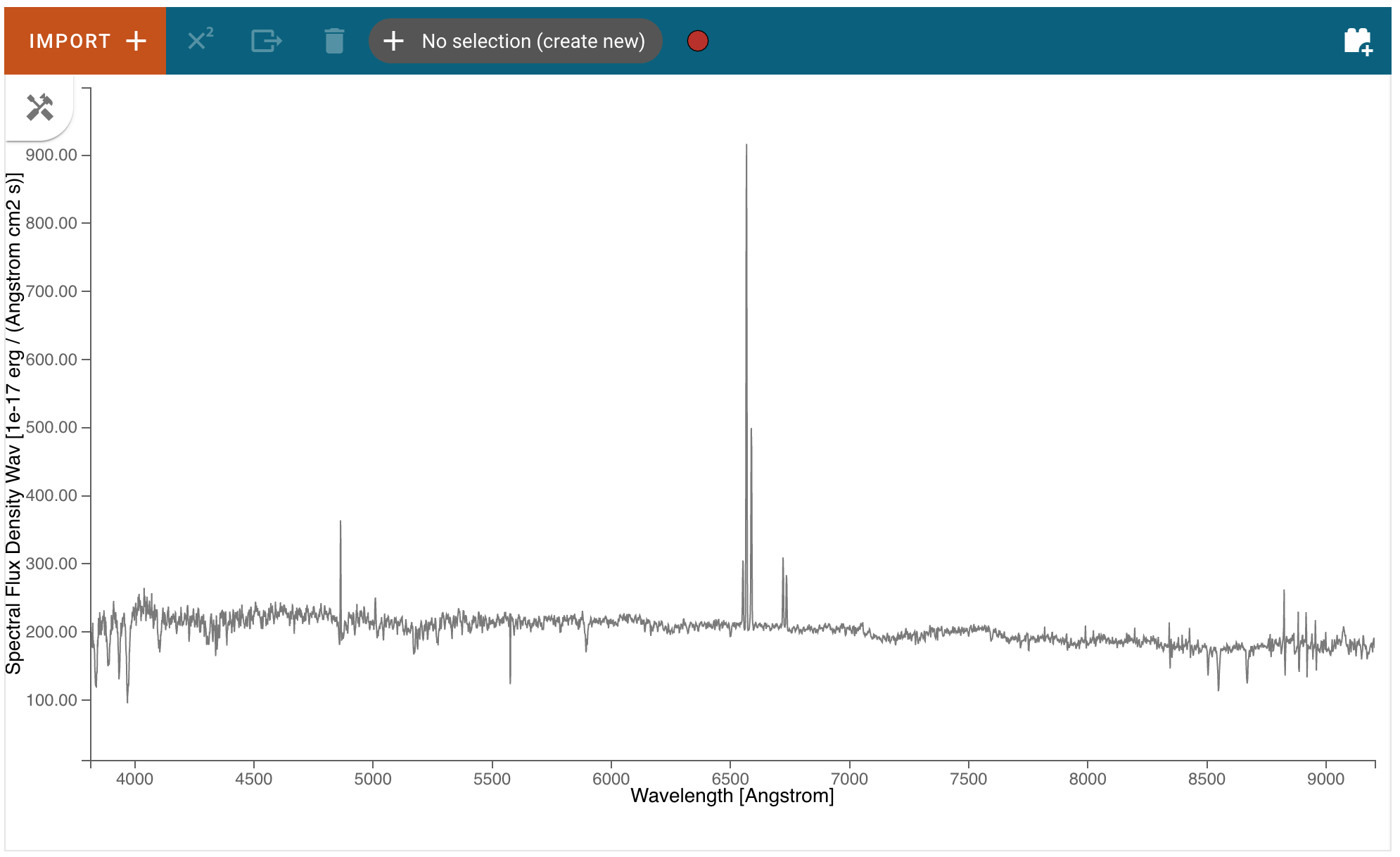
Spectra loaded by the user will be automatically displayed in the viewer, although additional spectra loaded after the first may not be fully shown if they exceed the bounds of the plotted area, which are set based on the first displayed spectrum. The bounds can be changed via the Pan/Zoom tool or by deselecting the current spectra and selecting a different spectrum for display. Spectra generated by plugins (e.g a spectrum generated by the Gaussian Smooth plugin) will generally be automatically be displayed as well, and one can always see the spectra available and toggle their visibility in the data selection dropdown menu (see Selecting Data Set for more detail).
Selecting Data Set
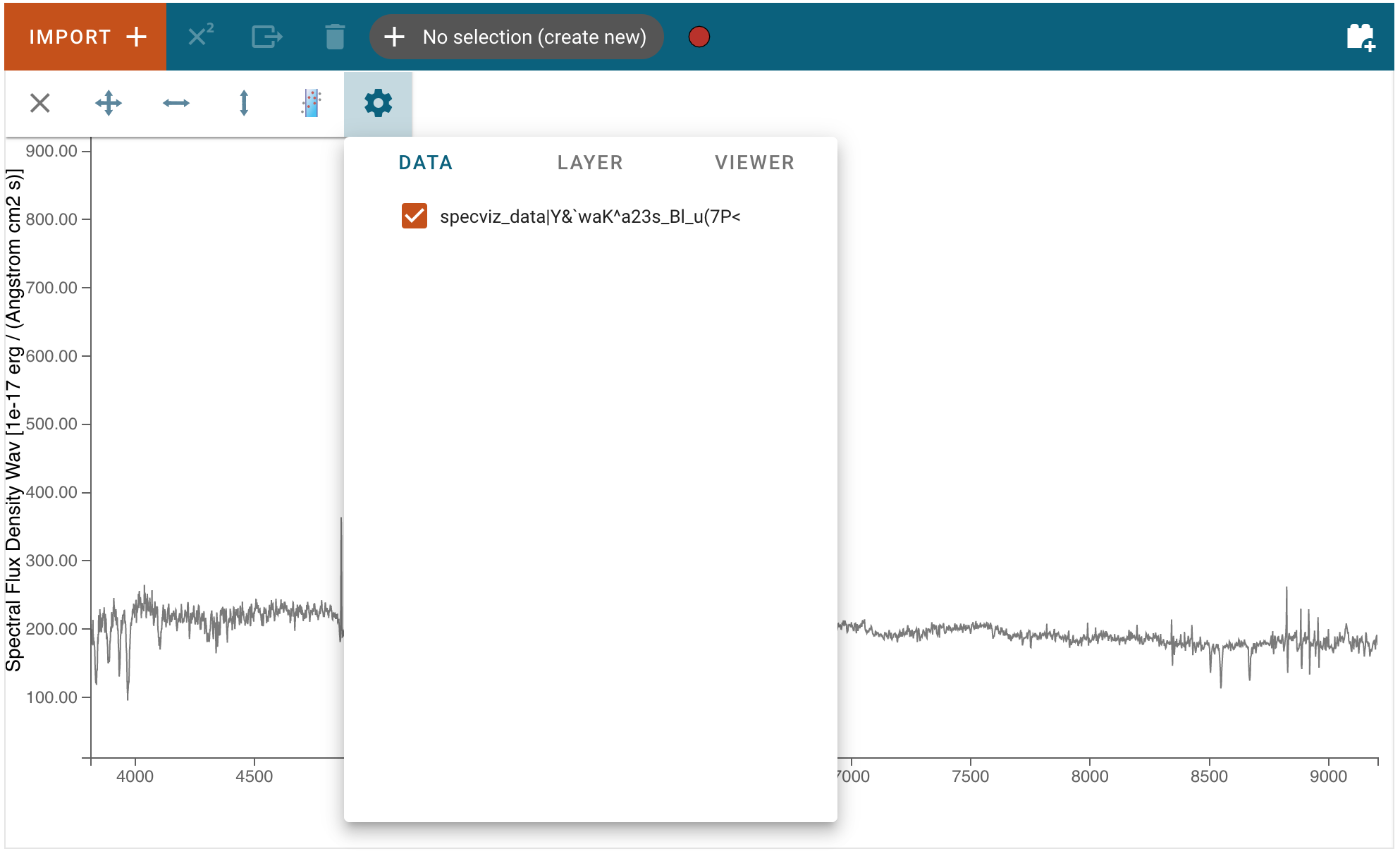
Data can be selected and de-selected by clicking on the “hammer and screwdriver” icon at the top left of an image viewer. Then, click the “gear” icon to access the “Data” tab. Here, you can click a checkbox next to the listed data to make the data visible (checked) or invisible (unchecked).
Pan/Zoom
More words…
Defining Spectral Regions
Spectral regions can be defined by clicking on the “hammer and screwdriver” icon at the top left of an image viewer. Then, click the “region” icon to set the cursor dragging function in “spectral region selection” mode.
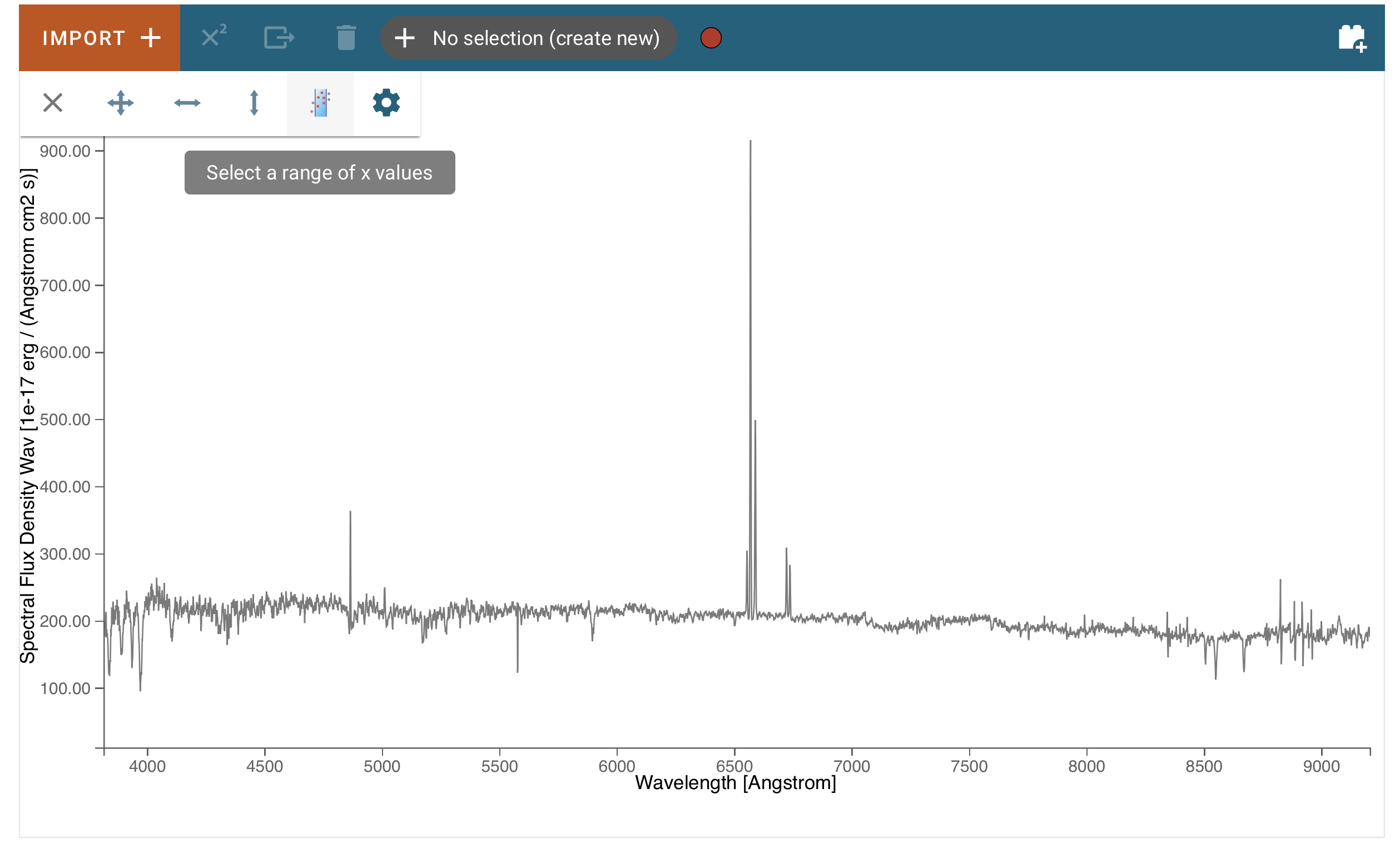
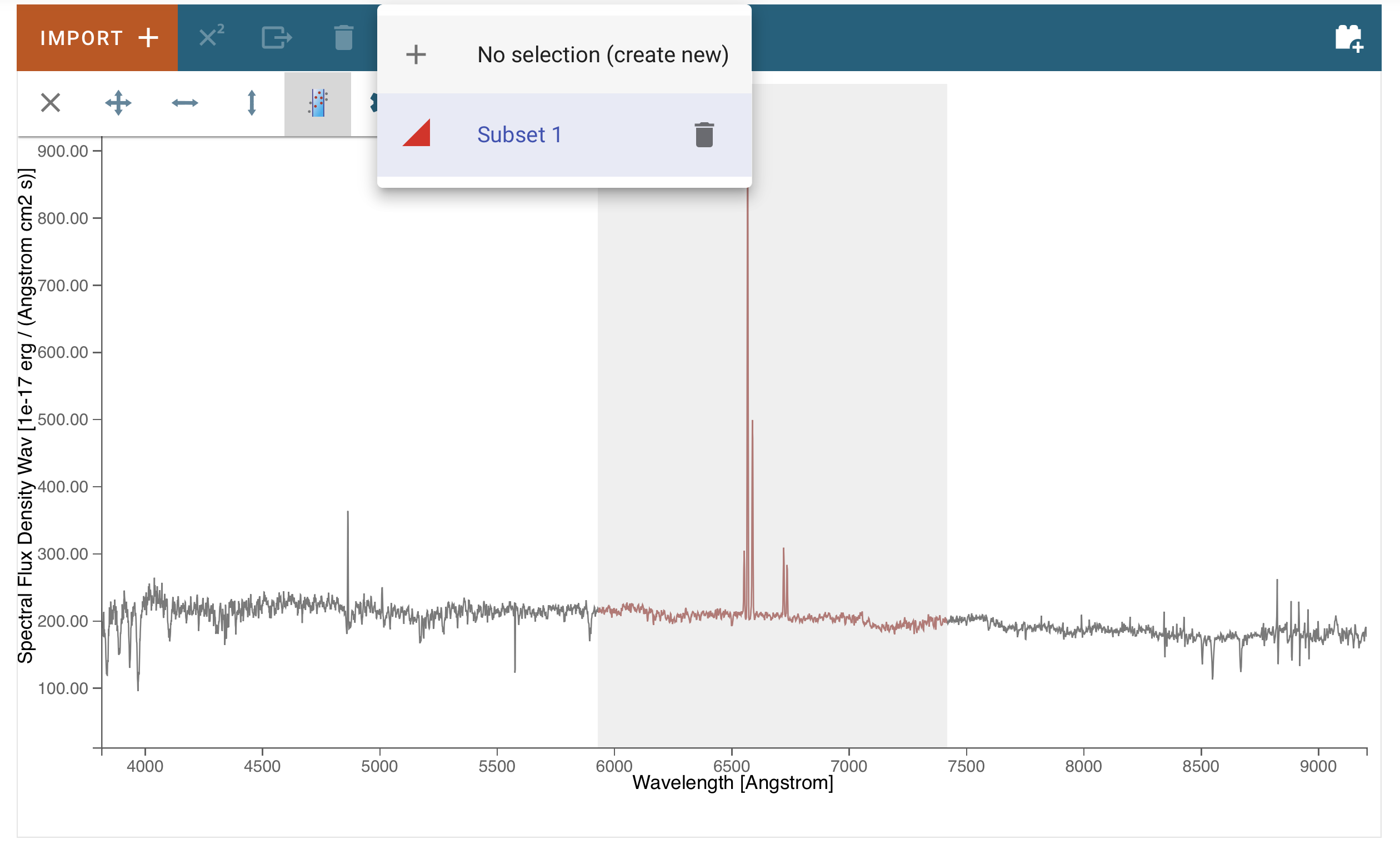
Now, you can move the mouse to one of the end points (in wavelength) of the region you want to select, and drag it to the other end point. The selected region background will display in light gray color, and the spectral trace in color, coded to subset number.
You also see in the top tool bar that the region was added to the data hold, and is named “Subset 1”.
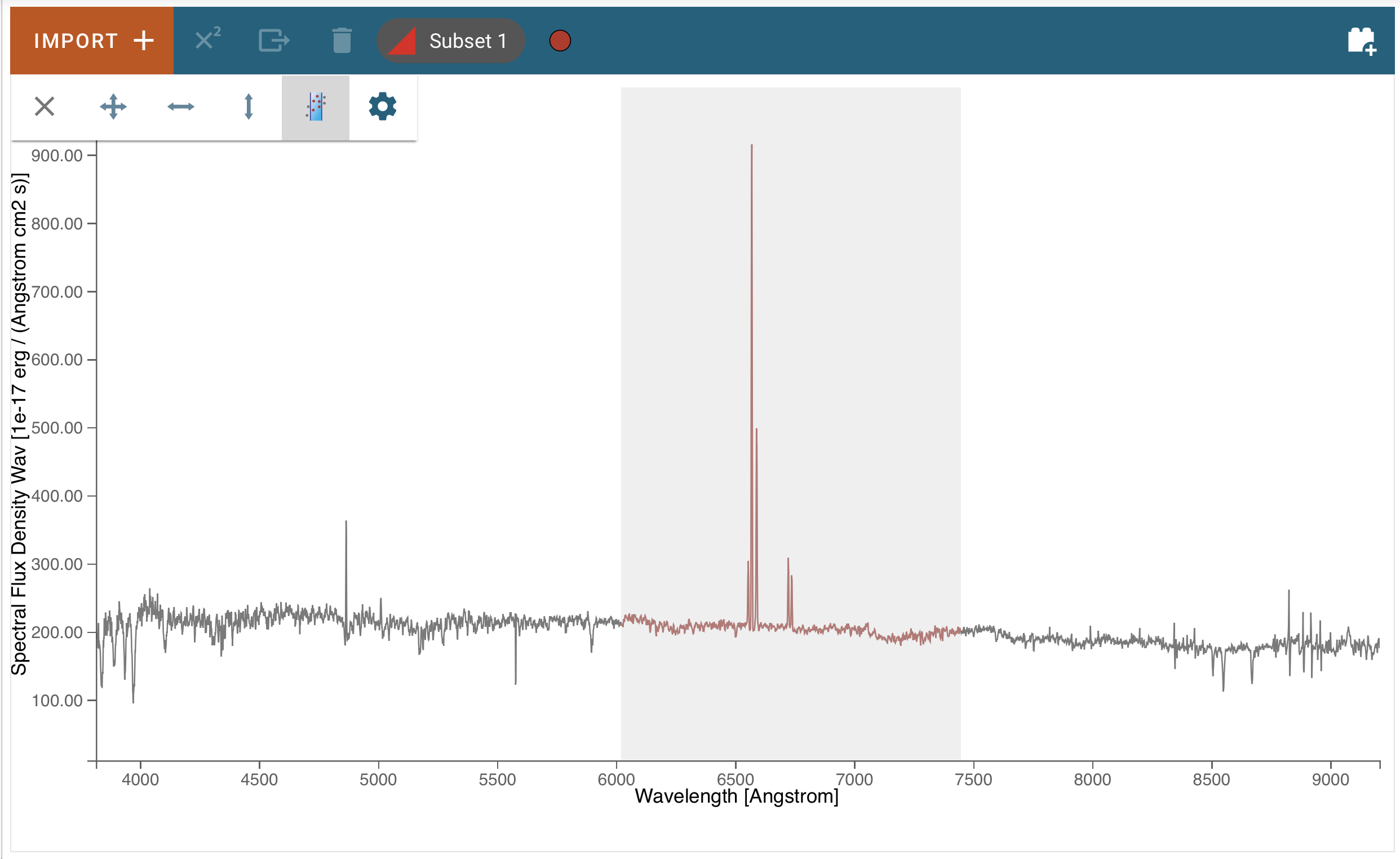
Clicking on that selector, you can add more regions by selecting the “create new” entry:
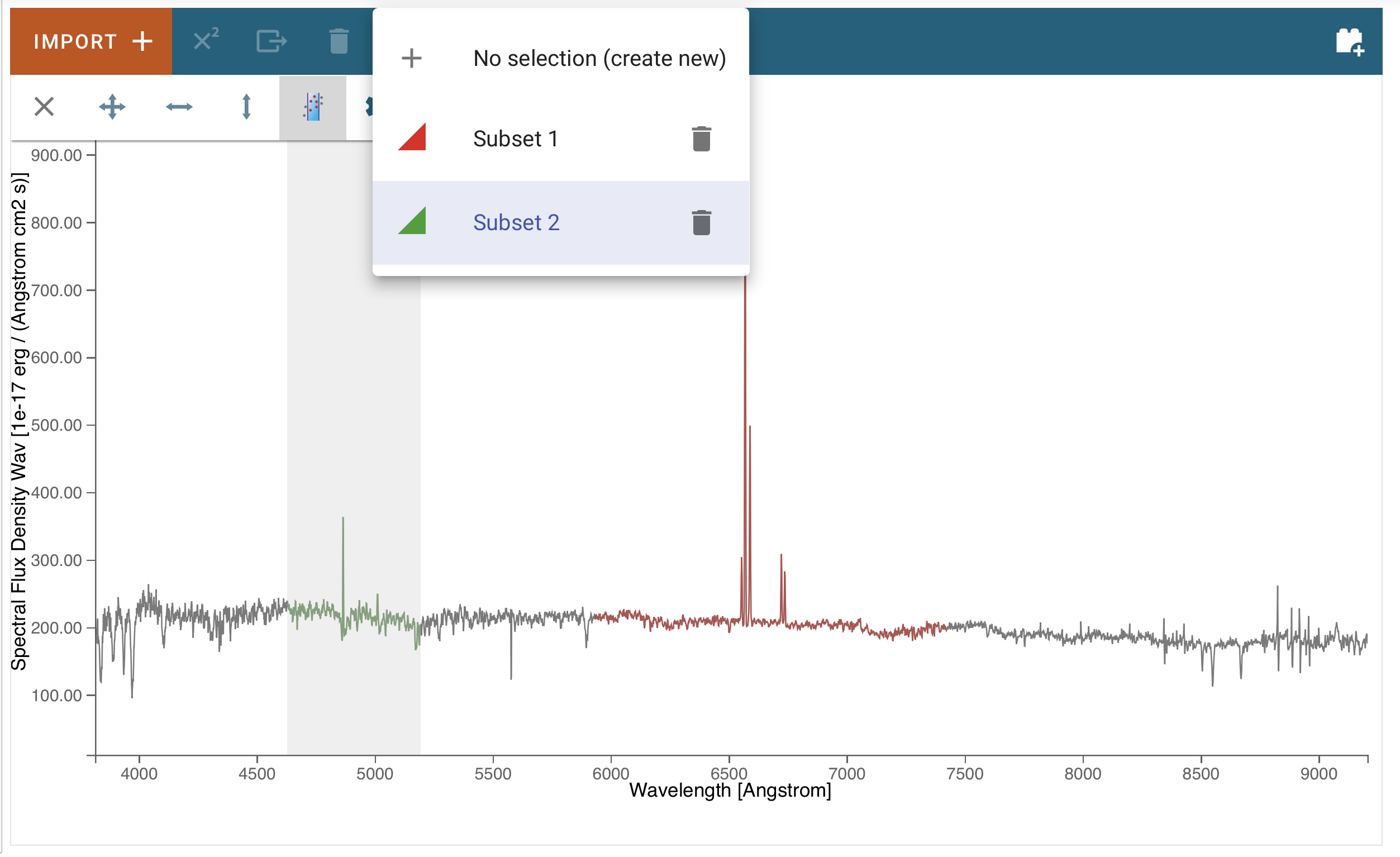
Now just select the end points of the new region as before. It will be added to the data hold with name “Subset 2”:
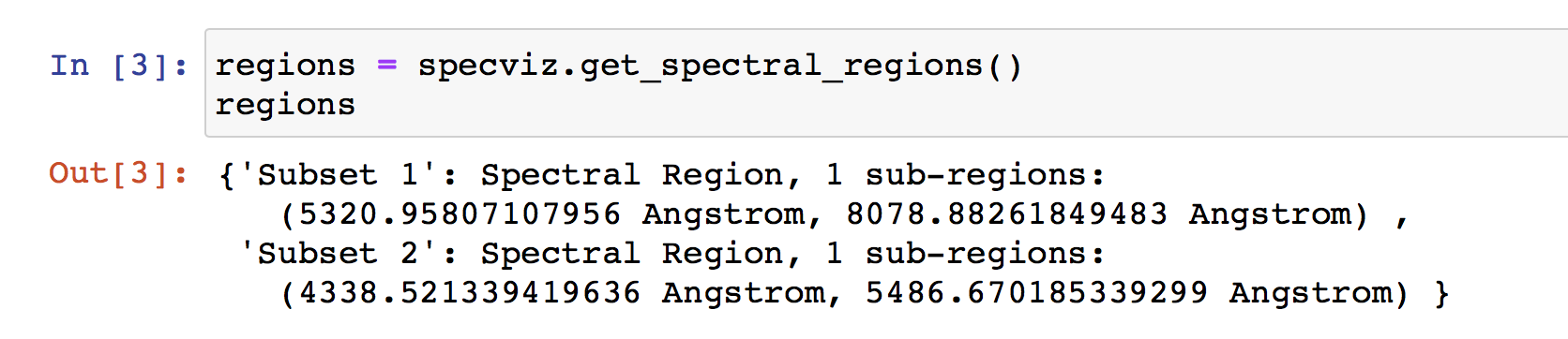
In a notebook cell, you can access the regions using the get_spectral_regions() function:
Plot Settings
More words…